Subtitles now become an indispensable part of videos. They're crucial for creators to reach wider audience and improve the accessibility of their content. For viewers, subtitles can help them better understand the content, especially for foreigners, the hearing impaired, language learners and so on.
Looking for a subtitle editor to create, edit, or convert SRT files on Mac? You've come to the right place. In this guide, we'll introduce the 5 best subtitle editors for Mac, making it easy to edit, sync, and customize subtitles with precision. Whether you're searching for a free or premium solution, online or desktop-based, you'll find an option that fits your needs. Let's get started!
Free and Customizable Subtitle Templates for You:





Learn More: How to Add Subtitles to iMovie>>
#1. AI-powered Online Subtitle Editor for Mac - FlexClip
Compatibility: Available for all Mac computer running Chrome browser.
Price: Free with basic edits while upgrading is required to unlock AI-powered features with cheap charge.
FlexClip is an AI-powered comprehensive Mac subtitle editor, designed to help you generate, edit, and sync subtitles without any software downloads. Powered by advanced AI, it can automatically generate subtitles from videos in over 140 languages with up to 95% accuracy, or sync existing subtitle files to timestamps in a single click—no manual work required.
For customization, you can easily edit fonts, colors, animations, and layouts to match your video’s style. For creative options, FlexClip lets you convert subtitles to lifelike speech or use the Translate feature to make your text accessible worldwide. Plus, importing and exporting subtitle files is simple, supporting multiple formats including SRT, VTT, SUB, SVB, and more.
The Best Online Subtitle Editor for Mac - FlexClip


Best Features of FlexClip’s Subtitle Editor:
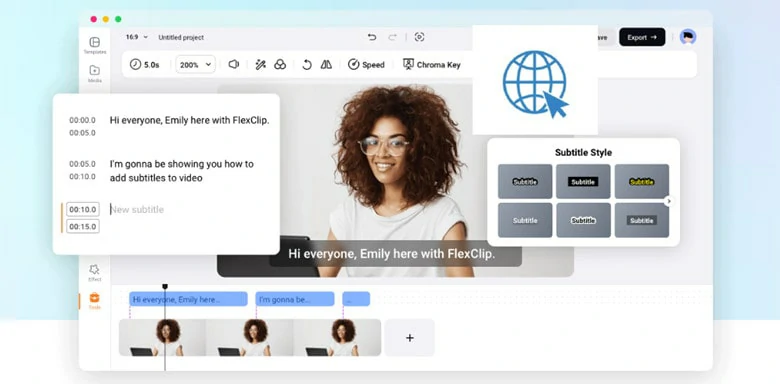
Subtitle Editor for Mac Online without Software Download
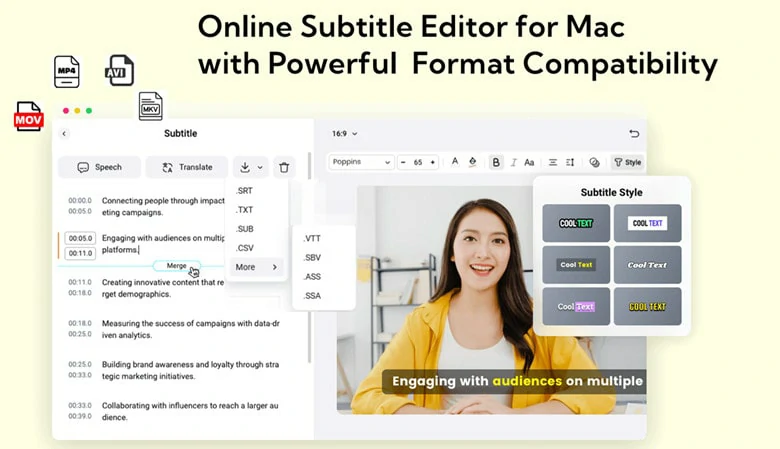
Subtitle Editor for Mac with Powerful Format Compatibility
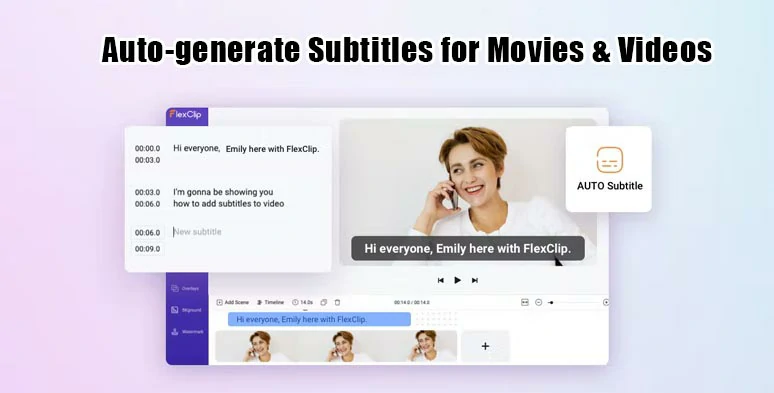
The Best Online Subtitle Editor for Mac - FlexClip
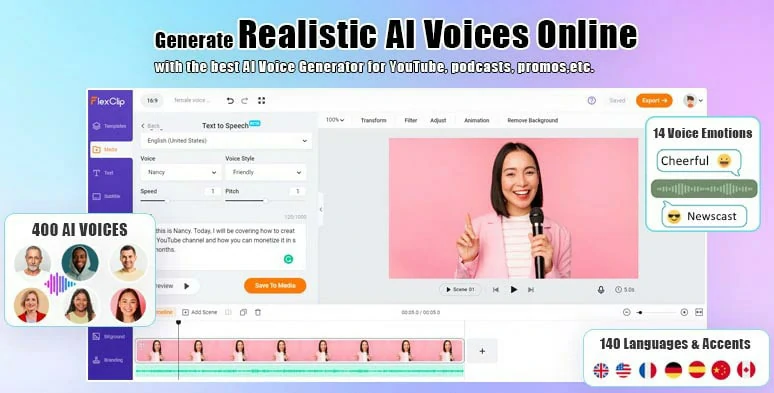
Subtitle to Speech Feature in FlexClip
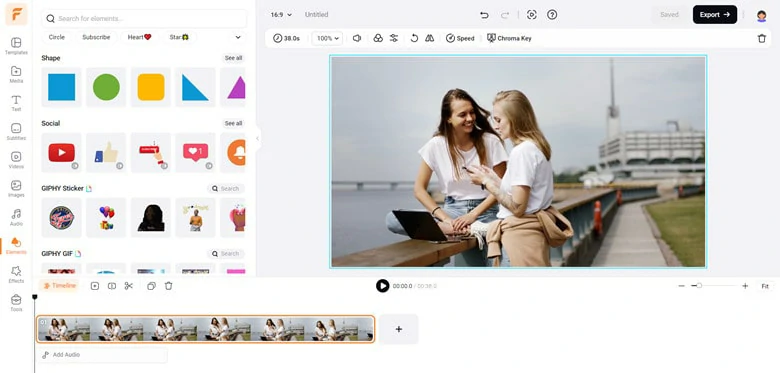
Other Stunning Features of FlexClip
Cons:
Who Is FlexClip Best Suited For?
FlexClip is perfect for anyone who wants to create and enhance videos quickly using AI-powered tools for subtitles, animations, and more.
2. Best Free Mac Subtitle Editor - Aegisub
Compatibility: Windows, macOS, and Linux
Price: Free
Aegisub is a free, cross-platform open sources tool for creating and modifying subtitles on Mac. It generates subtitles in a quick way and comes with various powerful editing tools for stylish subtitles. Meanwhile, a real-time preview feature is designed for you to check the status of the work.
With this Mac subtitle editor, you can import many types of subtitle files, such as SRT, SSA, ASS,SUB and so on. Then, sync it with the audio and video content of your movie. What's more, it includes an integrated spell checker to identify and modify spelling mistakes. However, it requires a steep learning curve to become familiar with the software due to its complex interface.
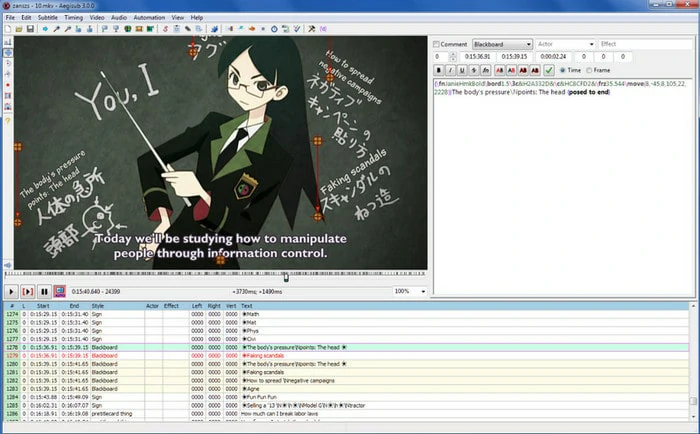
The Best Free Subtitle Editor for Mac - Aegisub
Pros:
Cons:
Who Is Aegisub Best Suited For?
Aegisub is best suited for subtitle enthusiasts, translators, and video professionals who need advanced subtitle editing features, precise timing controls, and extensive styling options.
3.Mac Subtitle Editor with Translation - Jubler
Compatibility: Windows, macOS, and Linux systems
Price: Free
Jubler is another open-source subtitle editor for free on Mac. Whether adding new subtitles or refining already existing ones, Jubler will never let you down. As a high-compatibility subtitle editor, it works with various subtitle formats and also lets you convert subtitles between many formats. In this editor, you can customize the style of titles and resize graphically displayed subtitles.
Most importantly, this Mac subtitle editor is endowed with an integrated spell checker and chars counting tool. Jubler proves to be a feature-rich solution that brings you an easy-to-configure solution for editing and converting subtitle files on your Mac. While it’s a feature-rich subtitle editor for Mac, you might want to explore other options if you prefer a simpler editing experience with a clean and intuitive interface.
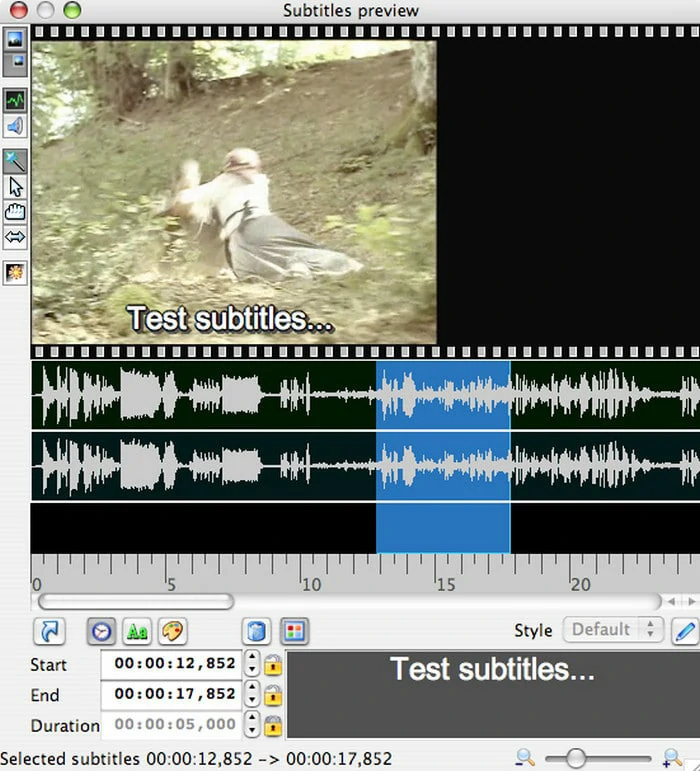
Mac Subtitle Editor with Translation - Jubler
Pros:
Cons:
Who Is Jubler Best Suited For?
Jubler is best for beginners, translators, and content creators who need a simple, lightweight tool for creating, editing, and syncing subtitles.
4. Mac Subtitle Editor with Auto-transcription - Subs Factory
Compatibility: Requires macOS 12.4 (Monterey) or higher.
Price: Free for Basic Editing and Transcription Requires Payments.
Subs Factory makes subtitling easier! It's a powerful tool to perform the creation, modification and resynchronization of subtitles efficiently. With Subs Factory, you can effortlessly edit the text, duration, timing, size and color to ensure the layout fit your video theme and style.
Tired of typing subtitles word by word? Try its automatic subtitle creation, which uses voice recognition to extract subtitles directly from your videos. For broader reach, apply automatic translation in over 100 languages to connect with viewers worldwide. These premium features also come with a free trial.
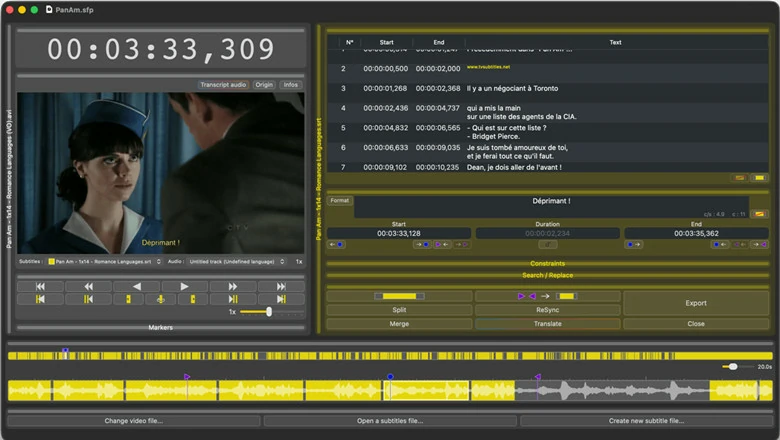
Mac Subtitle Editor with Auto-transcription - Subs Factory
Pros:
Cons:
Who Is Subs Factory Best Suited For?
Subs Factory is best suited for casual users and beginners who want a simple, straightforward tool to create, edit, and burn subtitles without complex features.
5. Best Subtitle Formatting on Mac - Subtitle Workshop
Compatibility: macOS 10.12 or +
Price: Free
Working with hundreds of subtitle features, Subtitle Workshop is an excellent option for creating, editing and converting text-based subtitle files. It supports over 60 subtitle formats via the Subtitle API library and enables users to save subtitles in a custom user-defined file format.
As for customization, there is vast array of tools for automatic timing and text manipulations, including automatic durations, smart line adjusting, spell checking and more. Additionally, you can add the style tags and color tags to your subtitle videos. Thanks to its simple interface, it's easy to make subtitles in minutes.
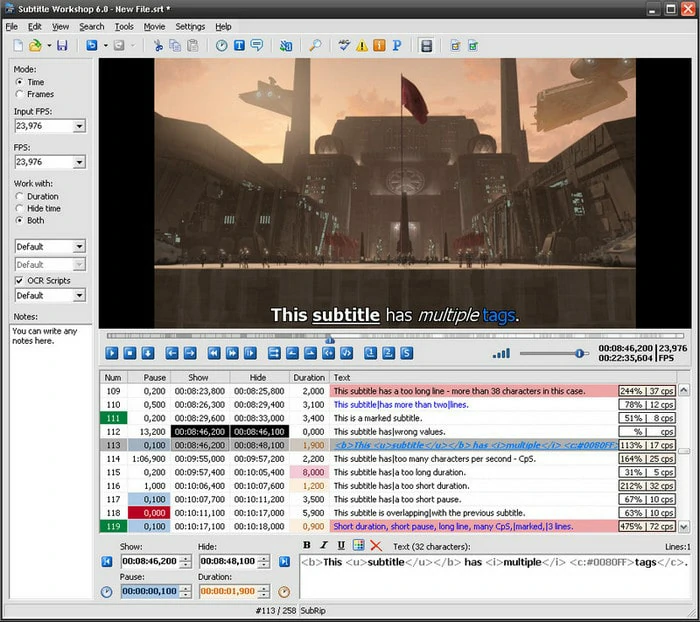
The Best Subtitle Editor for Mac - Subtitle Workshop
Pros:
Cons:
What Is Subtitle Workshop Best Suited For?
Subtitle Workshop is best suited for users who need a free, lightweight, and versatile tool for creating, editing, and syncing subtitles, especially those working with multiple formats and precise timing.
How to Edit Subtitles on Mac Using FlexClip
After familiarizing yourself with the list of the 5 best subtitle editors for Mac, let’s use FlexClip as an example to see how it works for subtitle editing. Follow our step-by-step guide to explore its features in detail.
Access FlexClip’s editor page through your browser and click Upload Files in the Media panel to import the video you want to edit. Once the video is loaded, add it to the timeline to begin editing.
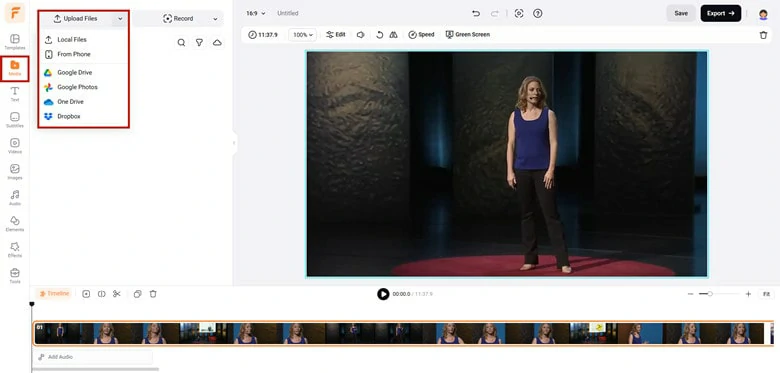
Access FlexClip Editor Page and Upload Your Video
Navigate to Subtitles > Upload Subtitle File to import a local subtitle file. FlexClip supports various functions, including format conversion, video and subtitle merging, synchronization, bilingual caption generation, and subtitle layout customization. Once uploaded, FlexClip will display the subtitles with real-time timecodes for easy editing.
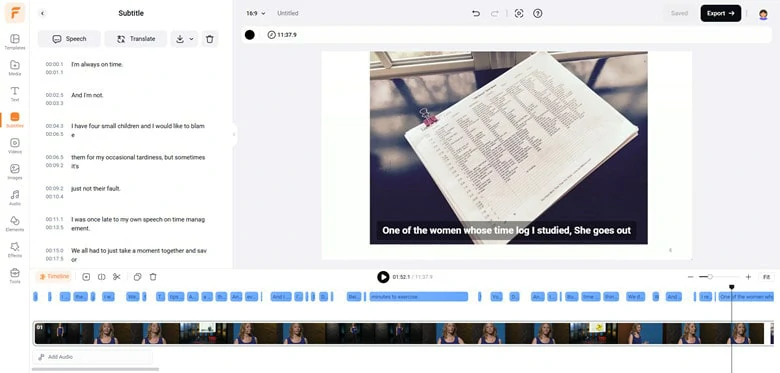
Upload Existing Subtitle File for Personal Edits
If you don’t have an existing subtitle file, you can use FlexClip’s auto subtitle generator to extract subtitles directly from your video. This feature is fast and highly accurate, delivering results with up to 95% accuracy. You can then personalize the subtitles to suit your needs.
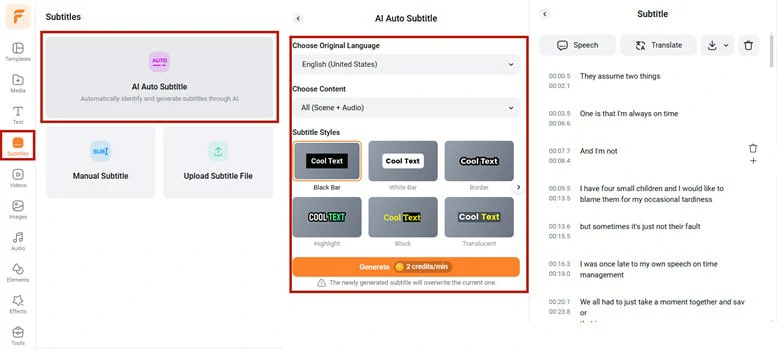
Automatically Extract Subtitles from Video with FlexClip's Auto Subtitle Generator for Personal Edits
After making your edits, preview the video to check the subtitle layout and timing in real-time. Once satisfied, click the Export button to merge the subtitles with the video, creating a file with burned-in captions. Alternatively, you can download the subtitles as a separate file in your desired format for use as closed captions on platforms like YouTube.
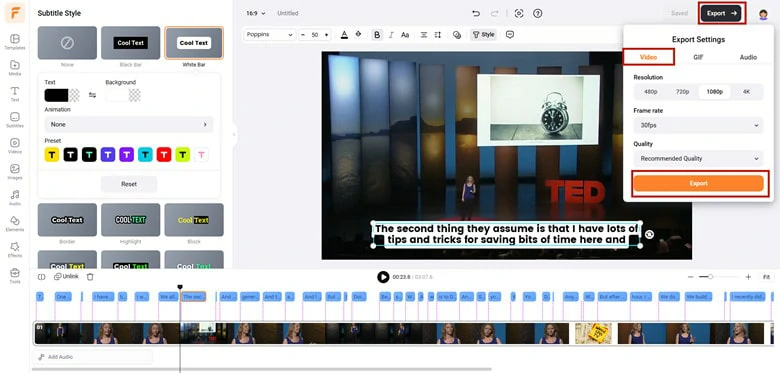
Preview the Subtitle Layout and Export the Video
FAQs About Subtitle Editing on Mac
1. Can I add subtitles to video in iMovie?
Yes. As the built-in video editor for Mac, iMovie allows you to manually add subtitles to your videos. To do this, you’ll need to select a title template and carefully listen to the narration in order to type out each phrase accurately. While iMovie is a free and convenient option for Mac users, it does come with some limitations: the process can be time-consuming, and you cannot remove or modify the animation effects embedded in the preset title styles.
If you’re looking for a more efficient solution, consider using FlexClip’s auto subtitle generator. This tool can automatically extract subtitles from your video and offers greater flexibility in customizing the subtitle layout, saving you time and effort.
2. How to create an SRT file?
Most people prefer SRT files because they are widely supported by subtitle editors, media players, and video editing software. To create an SRT file, you’ll need to use a subtitle generator that supports the SRT format. Once the subtitles are generated, simply download them as an SRT file for easy use.
3. Can VLC edit subtitle files?
No, VLC is primarily a media player and does not include subtitle editing features. While it can play videos with subtitles, it cannot generate or edit subtitle files.
4. How to merge subtitles with video?
If you want to merge subtitles into videos for burn-in captions, start by selecting a subtitle editor that supports a wide range of subtitle and video formats. Open your subtitle file in the editor, adjust the layout, check the synchronization, and apply animations if needed to make the subtitles more engaging.
The Bottom Line
That's all for 5 best subtitle editors for Mac. After reading this post, we believe you have gotten the answer about how to choose the ideal Mac subtitle editor. By the way, if you need an AI option with various editing tools, FlexClip is the best option for you to have a try. Now it's your turn!




FlexClip AI Video Maker
Reach professional-quality videos faster with easy editing tools, templates, and smart AI.
Start Now for Free
Hot & Trending
-

Best Ways to Find Music in YouTube Videos
-

Instagram Story Video Quality Bad After Upload? Fix It!
-

How to Repost Video on TikTok & How to Remove TikTok Repost
-

Improve Video Quality Online: 3 AI Video Quality Enhancers You Can't Miss
-

4K Convert to HD 1080p without Watermark: Best 4k Video Converters
-

Best 8 Free Video Editors - No Download Required
-

Top 13 Birthday Video Makers with Music and Effects Free
-

How to Search Filters on TikTok & Use a Filter You See - TikTok Filter Guide